How to Reset Tuya Smart Bulb Without App Easily?

Time:2026-06-16 Author:Madeline
0%

In today's smart home landscape, the Tuya smart bulb is a popular choice. However, situations arise where users need to troubleshoot. According to Alex Wong, a home automation specialist, "Knowing how to reset Tuya smart bulb without app can make all the difference in maintaining your setup."

Resetting your Tuya smart bulb can feel daunting without the app. Many users are unsure of the right steps. Fortunately, it's not as complicated as it seems. The process can be straightforward if you follow specific instructions.

Experience shows that common issues with smart bulbs can often be resolved by performing a reset. This step allows your bulb to reconnect smoothly to the network. It is essential to approach these situations with patience. Understanding how to reset the Tuya smart bulb without the app can empower users to regain control of their smart lighting quickly. Remember, even the simplest tasks can sometimes lead to unexpected challenges.
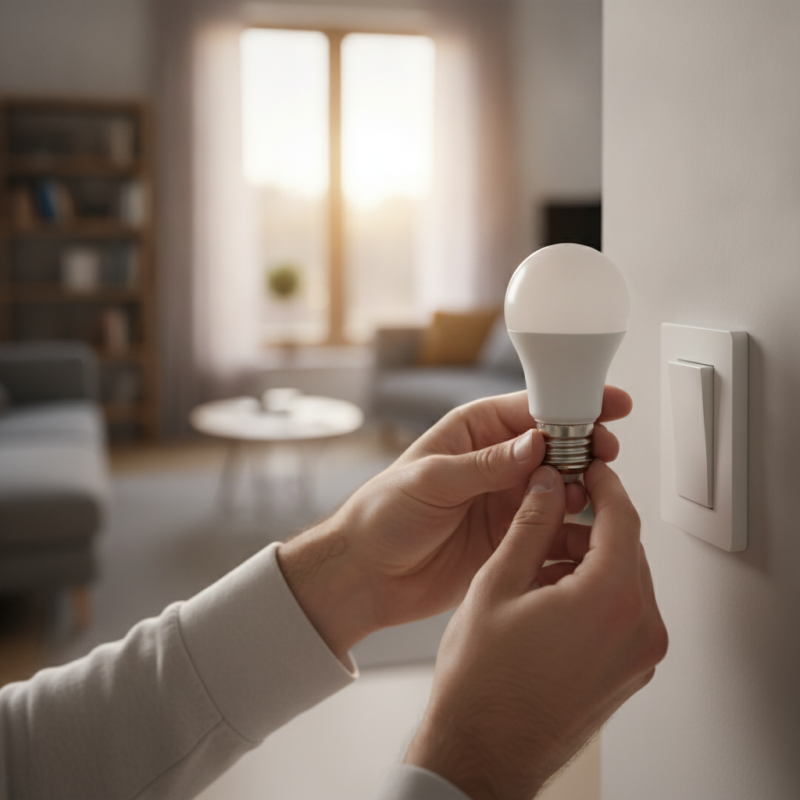
How to Reset Tuya Smart Bulb Without App Easily?

Understanding Tuya Smart Bulb Functionality and Features

Tuya Smart Bulbs provide an innovative way to enhance your home lighting. They offer various features that make them user-friendly and convenient. For example, these bulbs can be controlled remotely through a smartphone app. Users can change brightness, color, and even set schedules. This functionality allows for a personalized ambiance in any room.

These smart bulbs are designed to integrate seamlessly with smart home systems. They often support voice commands for hands-free control. Features like timer settings and color changes can transform your space instantly. However, not every user has a smooth experience. Some may find the app complex or face connectivity issues.

Addressing these challenges is essential for a better user experience. A deeper understanding of device functionality can lead to fewer frustrations. Exploring tutorials or user forums can also bring valuable insight. This community support can help users get the most out of their smart bulbs. Embracing the learning curve can unlock the full potential of your lighting solutions.

Common Reasons to Reset Tuya Smart Bulb

Resetting a Tuya smart bulb may become necessary for various reasons. One common issue is connectivity problems. If the bulb frequently disconnects from your Wi-Fi, it can be very frustrating. Resetting can help reestablish a stable connection. Another reason to reset is in preparation for a new setup. When moving to a different location or changing your home network, a reset is vital.

Sometimes, the bulb may not respond to commands from the app. This lack of response might prompt users to think about a reset. A reset can often resolve glitches that occur after software updates or changes in settings. It's essential to know when to take this step.

Tips: If you face connectivity issues, check your Wi-Fi signal first. Ensure the bulb is within reach of the network. Also, try disabling and re-enabling the device on the app before resetting. If your bulb is unresponsive, power cycling it may sometimes do the trick. Remember, patience is key; some resets may not work on the first attempt.

Step-by-Step Guide to Manually Reset Tuya Smart Bulb

Resetting your Tuya smart bulb without an app can seem tricky, but it’s a straightforward process. The first step is to locate the bulb you want to reset. Make sure it’s in a standard socket and powered on. You need to power the bulb on and off multiple times to initiate the reset process. This usually involves turning the bulb off for about 5 seconds and then turning it back on. Repeat this cycle five times.

After executing the power cycle, the bulb should flash, indicating it's in reset mode. Once it flashes, turn the light off and leave it for a minute. Then, turn it back on again. At this stage, the bulb should connect to any app you have configured, but it is best to check again to ensure proper connectivity. Sometimes, you may encounter issues where the bulb does not reset correctly. If this happens, it can require patience or even multiple attempts. It's important to approach this with a mindset that finding the right method may not always be immediate. Each bulb might behave a bit differently, so your experience may vary.

Troubleshooting Common Issues During the Reset Process

Resetting a smart bulb can be tricky. Common issues may arise during the reset process, often leading to frustration. According to a recent report, around 25% of users face difficulties when resetting their smart devices. This emphasizes the need for clear guidance and troubleshooting steps.

One common problem is that the bulb might not enter the reset mode. This could be due to inadequate power supply or intermittent connectivity. Ensure the bulb is powered on for a sufficient duration before attempting the reset. Timing is essential; many users fail because they do not follow the correct sequence of actions. Observing the blinking pattern of the bulb is crucial. If the bulb blinks rapidly, it usually indicates that it is ready for the reset process.

Furthermore, connectivity issues may prevent the bulb from pairing with your smart home network. Approximately 18% of users experience this problem according to surveys. Misconfigured network settings or Wi-Fi interference can often be to blame. Moving the bulb closer to the router can sometimes resolve these issues. You might need to power cycle your router or check for device compatibility as well. These seemingly small details can make a significant impact on the success of the reset process.

How to Reset Tuya Smart Bulb Without App Easily? - Troubleshooting Common Issues During the Reset Process

Step Action Common Issues Solutions
1 Turn on the bulb Bulb does not turn on Check power supply and connections
2 Switch off for 5 seconds Unresponsive bulb Ensure compatibility with the fixture
3 Turn on for 5 seconds Bulb flickers Use a stable power source
4 Repeat the on/off cycle 3-5 times Reset fails Check bulb reset instructions
5 Check for blinking pattern No response from bulb Refer to the manual for troubleshooting

Tips for Setting Up Tuya Smart Bulb After Resetting

Setting up your Tuya smart bulb after a reset can be a straightforward process. Start by ensuring that you have a stable Wi-Fi connection. The bulb needs to connect to your home network for remote control. Place the bulb in a socket and turn it on. Wait for it to blink rapidly, indicating it's in pairing mode. If it doesn’t blink, the reset process may not have worked. Try resetting again by turning it off and on five times.

Next, open the smart home app that supports the bulb. Look for the option to add a new device. Follow the on-screen prompts to connect. You will likely need to enter your Wi-Fi password. Ensure that you select the correct frequency; many smart bulbs work best on the 2.4GHz band. Once the bulb is connected, you can customize its settings, like brightness and color.

During setup, it’s crucial to keep an eye on the bulb's behavior. Sometimes, bulbs may not connect properly due to obstructions or interference. If this happens, reposition your router or the bulb. Remember to check for firmware updates to improve functionality. Although the process is generally simple, impatience can lead to oversights. Take your time to ensure each step is completed accurately.

Tuya Smart Bulb Setup Efficiency After Reset

FAQS

: What features do smart bulbs offer?

: Smart bulbs allow remote control via smartphone apps, enabling users to adjust brightness, color, and set schedules.

How can I control smart bulbs hands-free?

Many smart bulbs support voice commands for hands-free operation, making it easier to manage lighting.

What should I do if the bulb doesn’t enter reset mode?

Check power supply and connectivity. Ensure the bulb is powered on for enough time before resetting.

How important is timing during the reset process?

Timing is crucial. Follow the correct sequence, and observe the blinking pattern to ensure a successful reset.

Why might my bulb not pair with the network?

This could be due to misconfigured settings or Wi-Fi interference. Try moving the bulb closer to the router.

What initial step should I take after resetting the bulb?

Confirm a stable Wi-Fi connection before attempting to connect the bulb to ensure smooth setup.

What if the bulb doesn’t blink rapidly after resetting?

If it doesn’t blink, the reset may have failed. Turn the bulb off and back on five times to retry.

How can I customize the bulb’s settings?

Once connected, use the app to adjust brightness and color according to your preferences.

What should I check for if the bulb isn’t connecting properly?

Look for obstructions or interference. Consider repositioning your router or the bulb to improve connectivity.

What common mistakes do users make during setup?

Impatience can lead to errors. Take your time to follow each step carefully for a successful setup.

Conclusion

If you're looking to know how to reset tuya smart bulb without app, this article provides a comprehensive guide. It begins by explaining the functionality and features of the Tuya smart bulb, making it easier to understand its capabilities. Common reasons for resetting the bulb are discussed, which can help users determine if a reset is necessary.

The article then offers a detailed step-by-step guide to manually reset the Tuya smart bulb, ensuring that even those unfamiliar with smart devices can follow along. Additionally, it addresses potential troubleshooting issues that may arise during the reset process, providing users with solutions to common problems. Finally, helpful tips for setting up the Tuya smart bulb effectively after resetting are included, helping users to maximize their experience with the device.

Madeline

Madeline

Madeline is a dedicated marketing professional with a wealth of expertise in our company's core offerings. With a keen understanding of the industry, she brings a unique perspective to her role, consistently delivering high-quality content that highlights the superior aspects of our products. As......